업데이트 내역
Browse every template from your dashboard
Every template, mockup and typography reel is now on your dashboard, each one playing as you scroll to it.
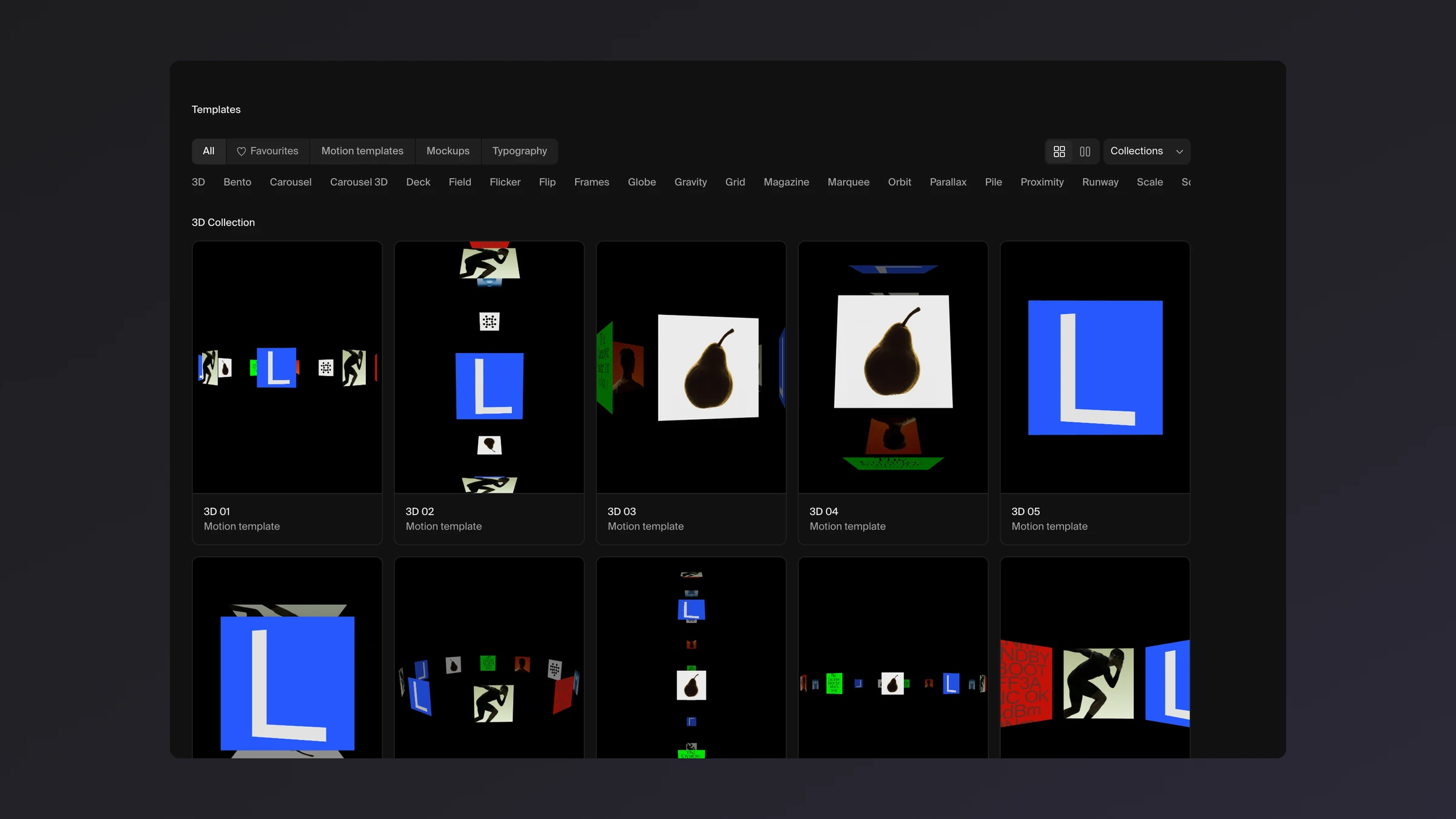
Pick All, Favourites, Motion templates, Mockups or Typography, jump to a collection, and sort by collection, newest or name. Switch between five and four columns, heart the ones you like, and open any card to see more from its collection.
Repeat any layer down, across or both
The new Repeat effect draws a layer again and again, and its motion repeats with it.
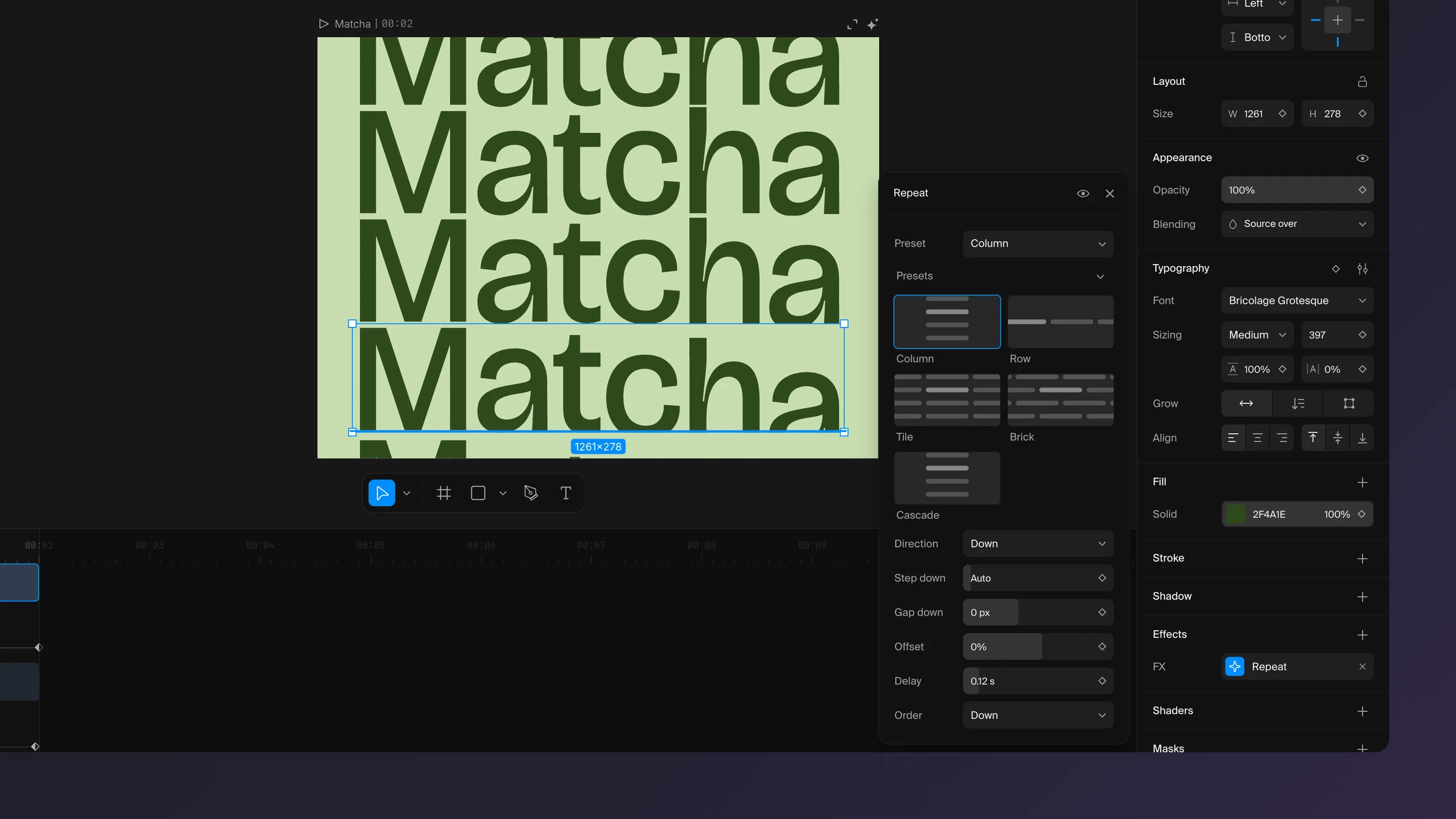
Add Repeat from the Effects + on any layer and choose Column, Row, Tile, Brick or Cascade. Edit the layer once and every copy follows.
- Set the step and the gap down and across, and slide every other row with Offset.
- Give it a Delay and each copy starts a moment after the one before, in the order you pick.
A fresh batch of pictures in Inspo
New pictures have landed in Inspo to browse, save and collect into boards.
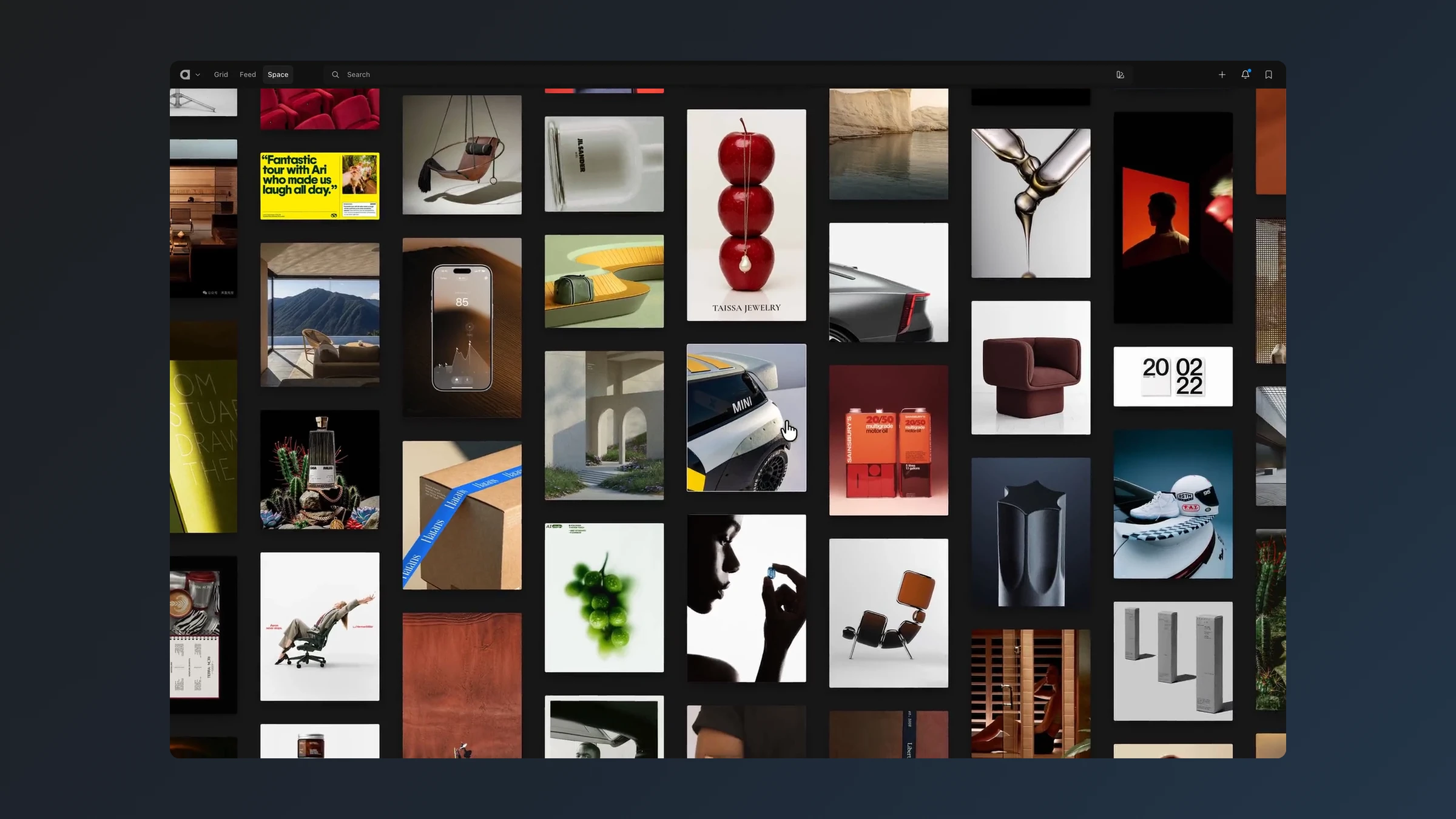
Open Inspo in the Mac app to see what is new, and save anything you like into a board for your next project.
Preview an animation by hovering it
Hover a preset and watch it play on the selected layer before you pick it.
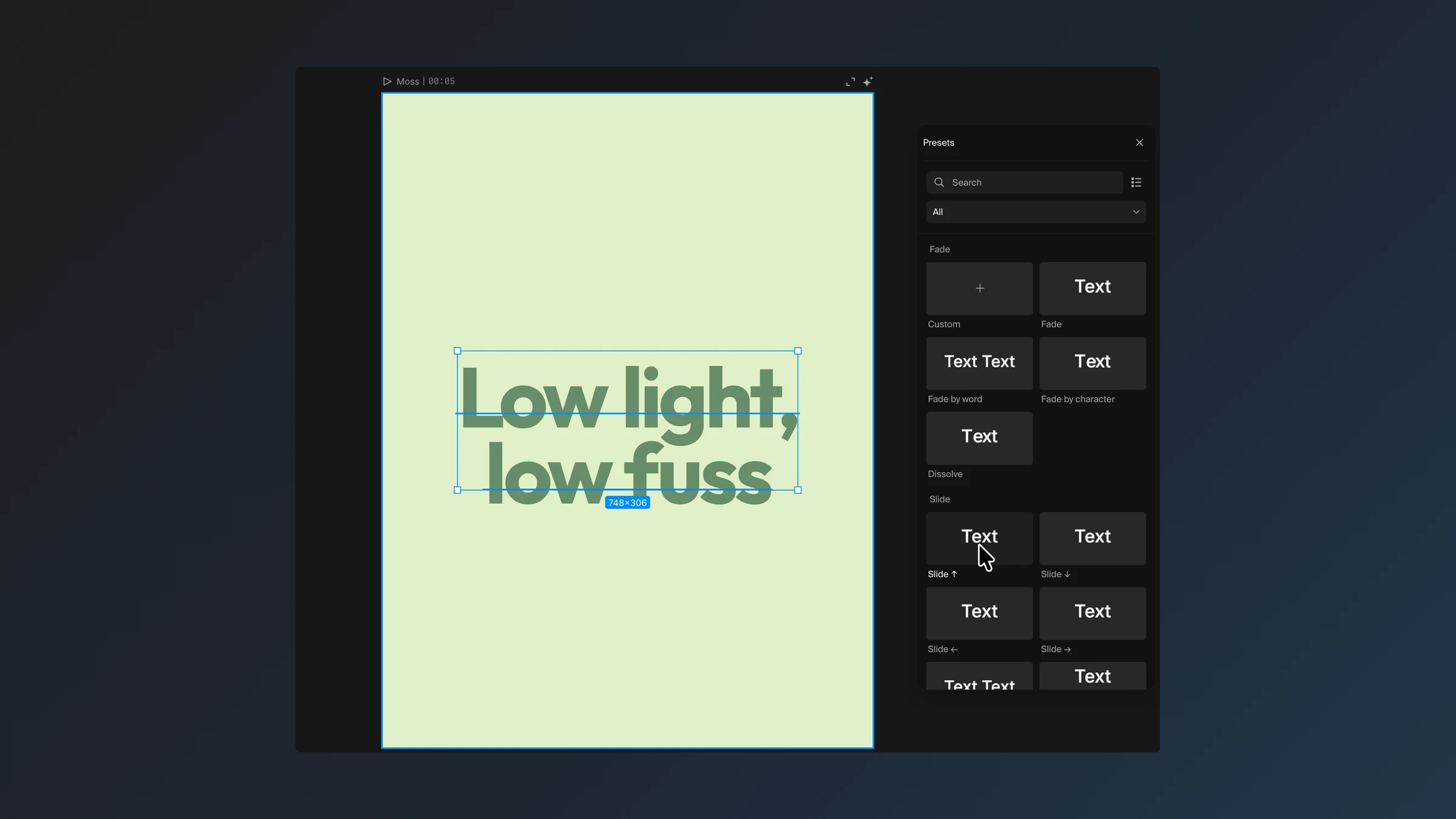
Select a layer, open the animation presets and hover any card or row. Move away and the layer goes back to its own animation.
Typography templates fit every format
Switch a type reel to another format and its type refits, shrinking only when it has to.
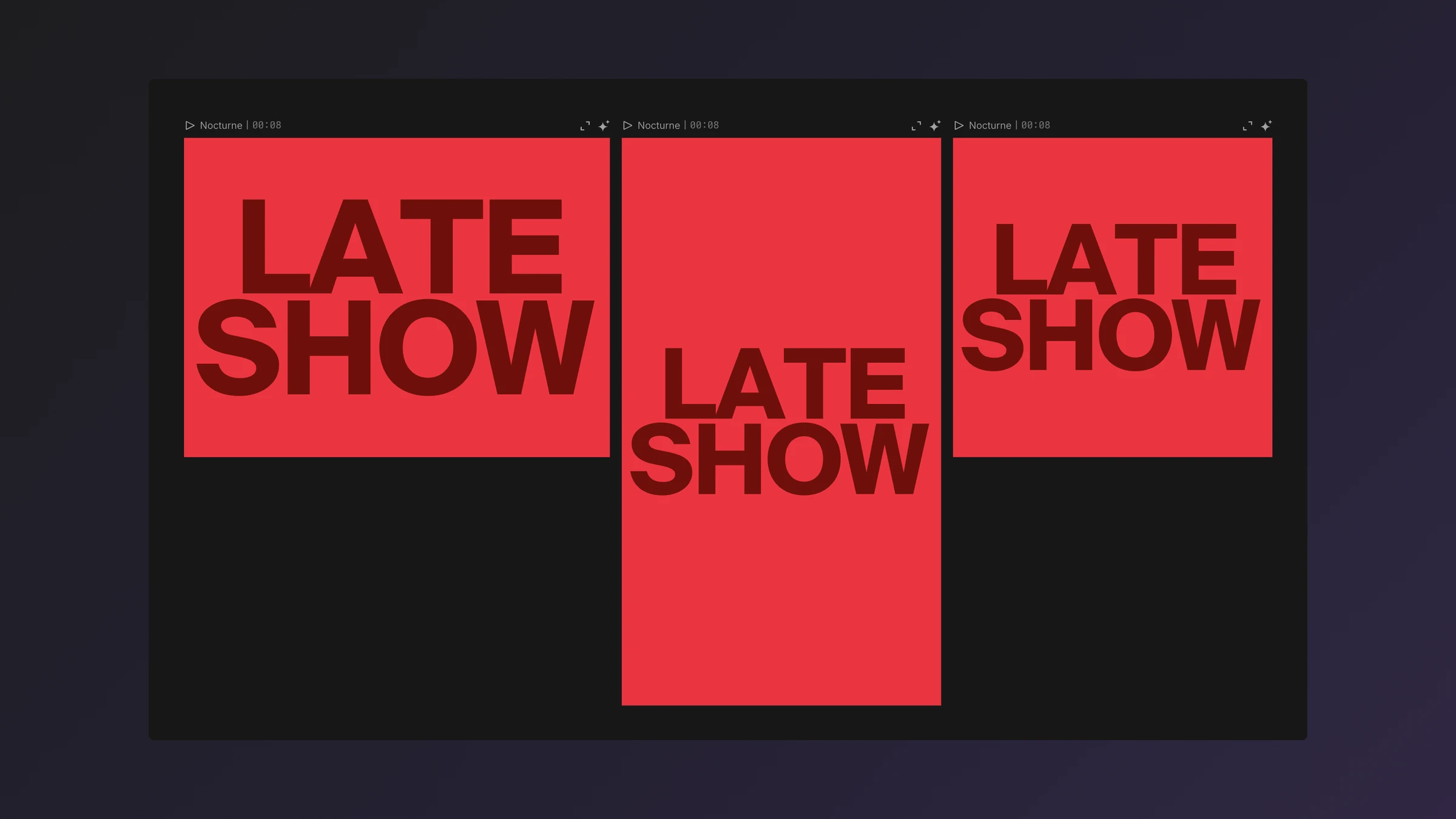
Click a ratio icon on any Typography template and the words reflow to the new shape on their own.
Share a project with a view-only link
Send anyone a link to look through a project, without letting them change it.
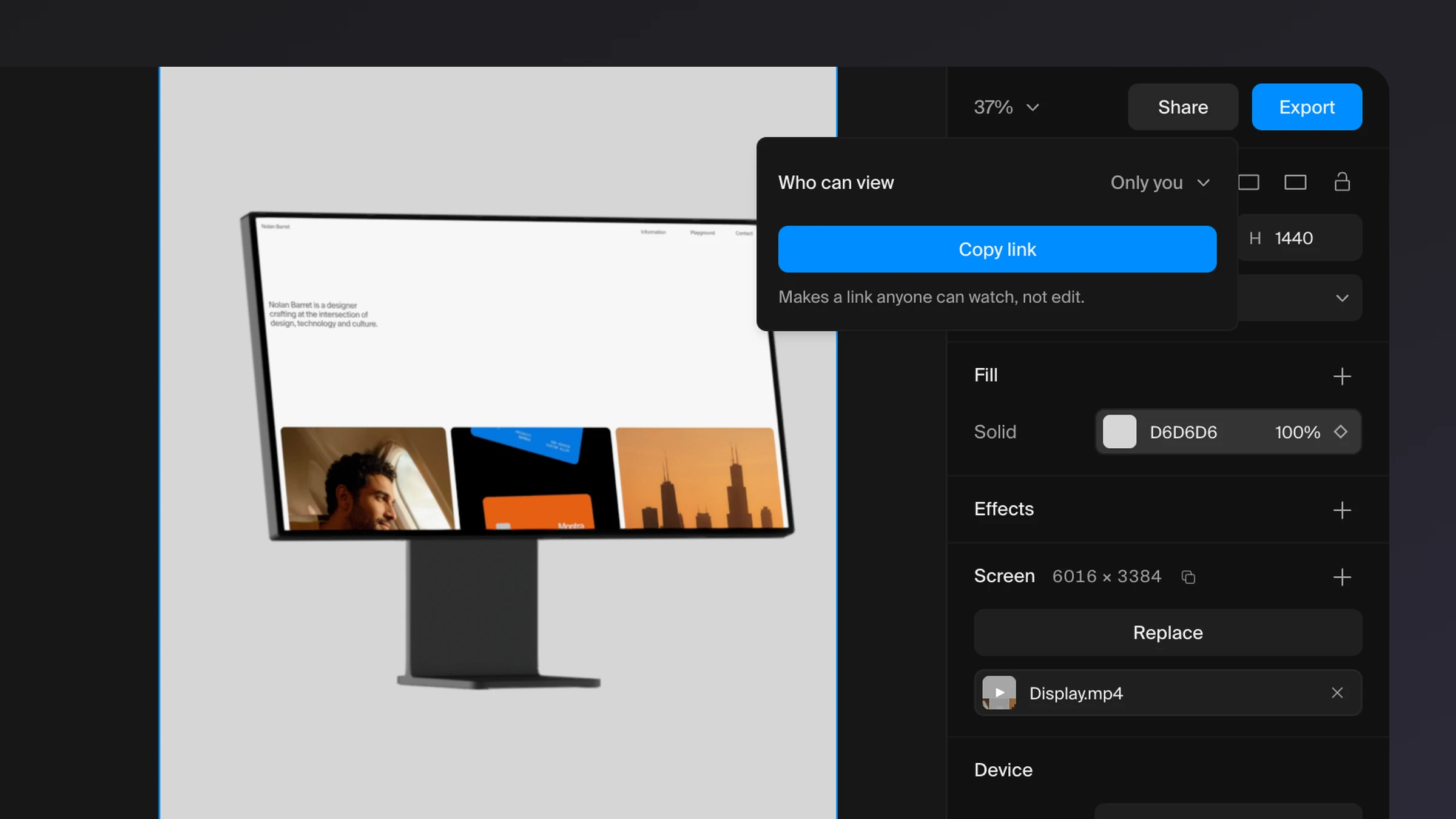
Click Share beside Export, then Copy link. The link opens your project with the panels out of the way, so people can play and look around but not edit.
You can see how many times it was opened. Set it back to Only you and the link stops working.
20 new Typography templates
Twenty new type reels have joined the Typography folder, from podcasts and coffee to tennis and theatre.
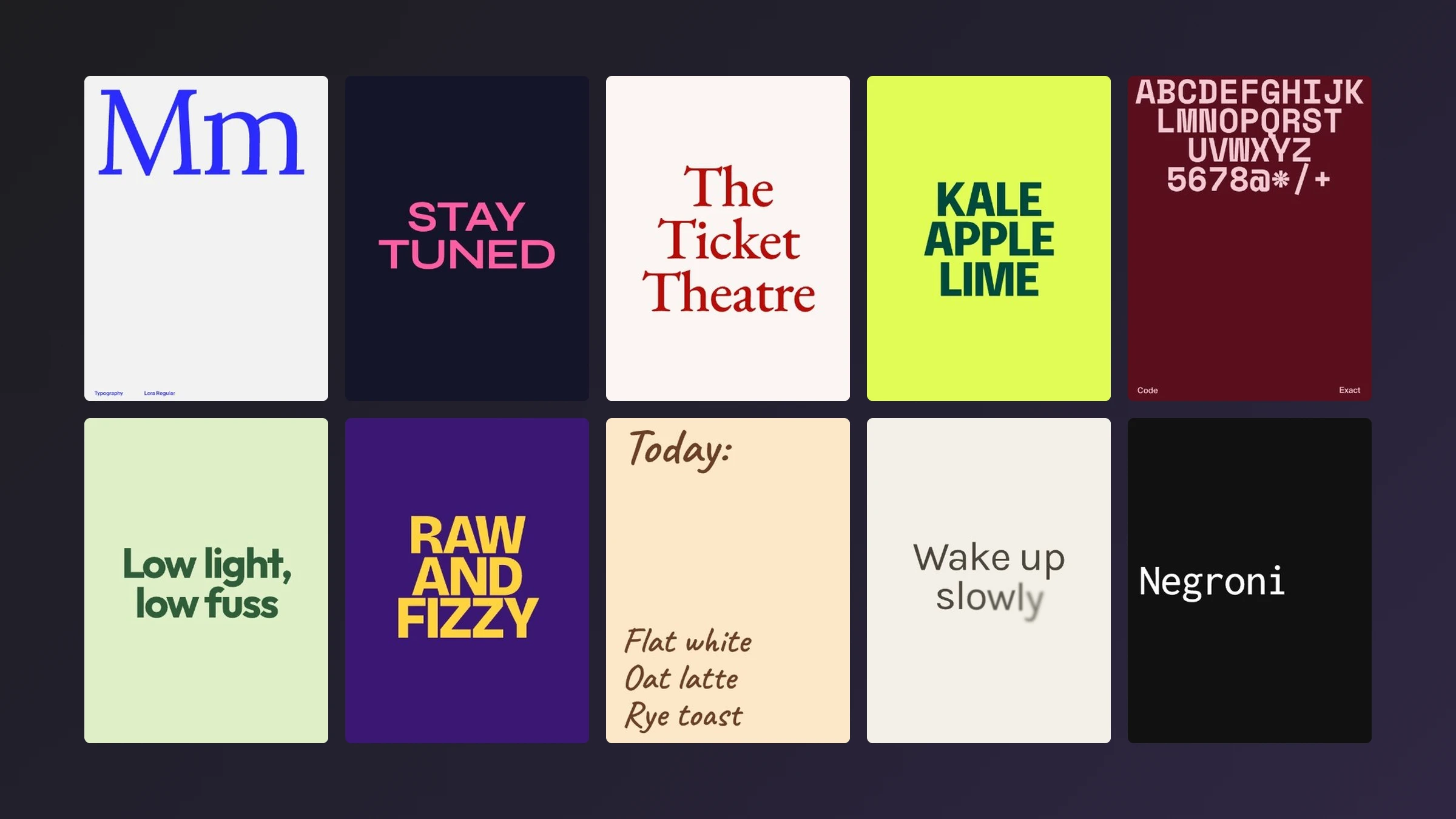
Find them in Templates → Typography, each with a New tag. Change the words, the colours or the font and the motion stays.
Set a frame rate on any scene
Pick 15, 24, 30 or 60 fps on any scene for a stepped, hand-made look.
The Frame rate row now sits under Layout on every scene, type reels included. The preview steps at that rate and Export follows it.
Learn Arqe one short video at a time
The new Academy shows how Studio works, one thing per video.
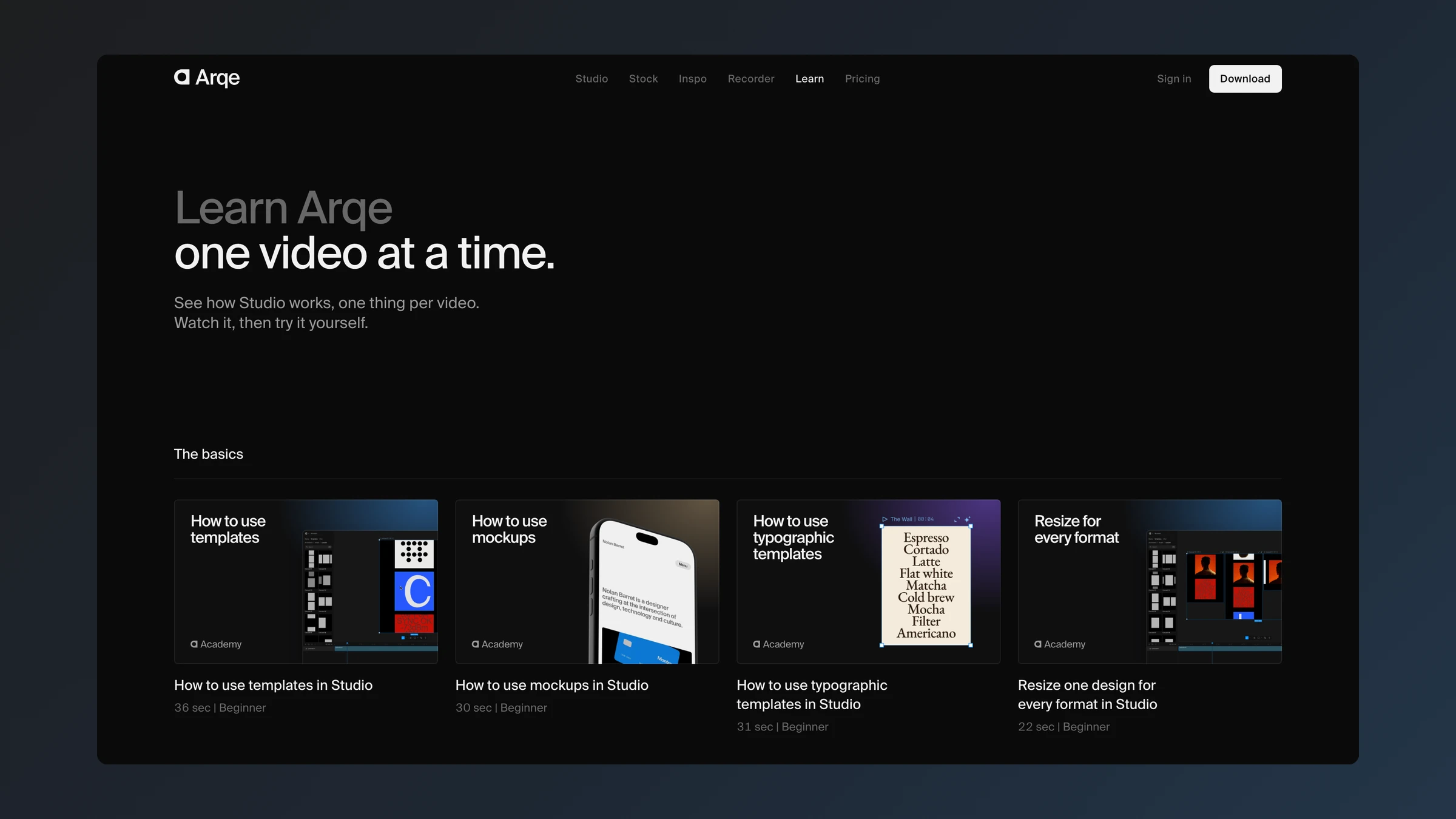
Watch a lesson, then try it yourself. Start with templates, mockups, typography and formats, then make a brand reel from an empty canvas. Find it under Learn on arqe.ai.
Turn any layer in real 3D
Tilt photos, videos, shapes, text and whole scenes in true perspective, and animate them.
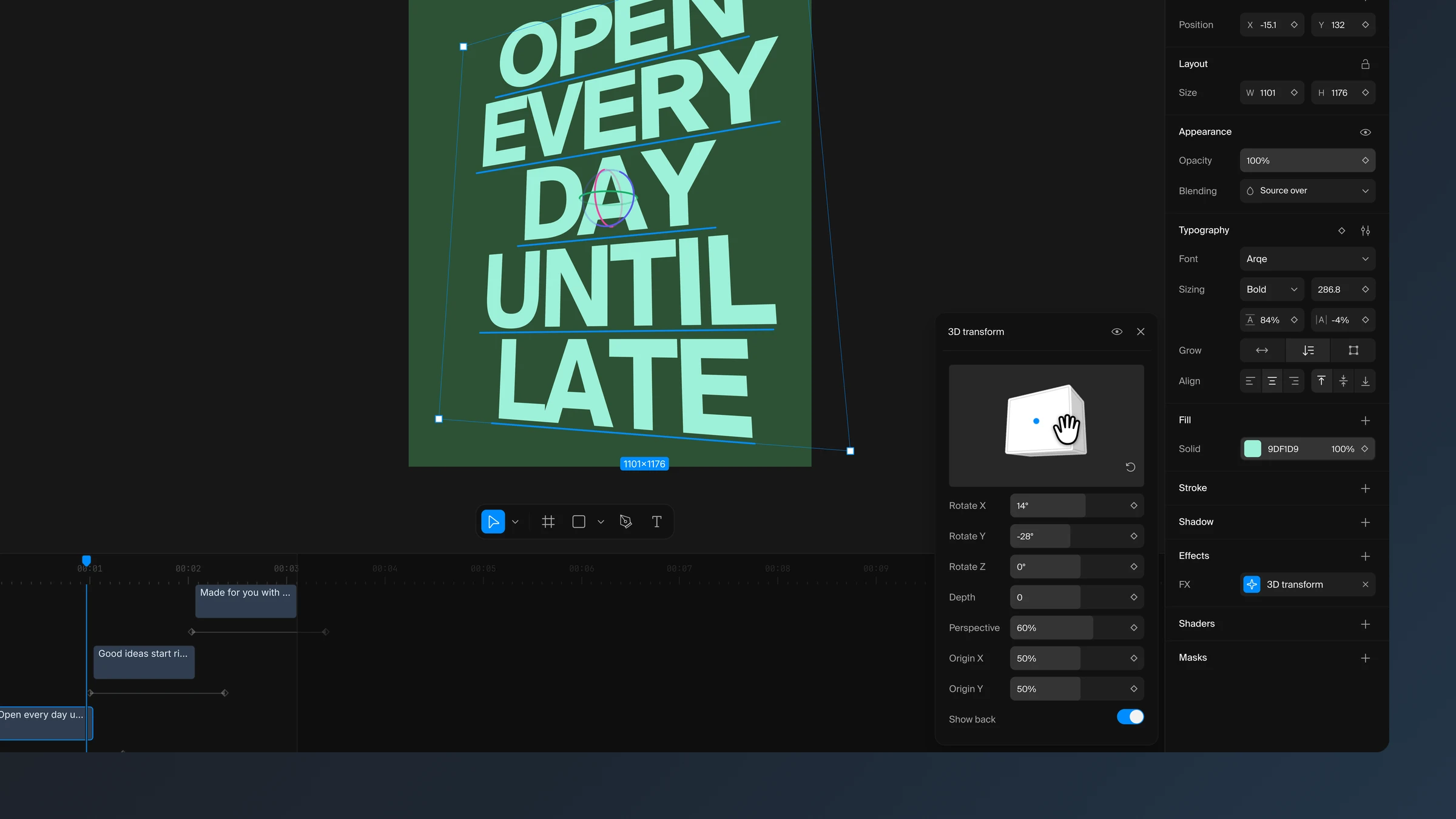
Add 3D transform from the Effects + on any layer. Text stays editable while it is turned, so you can keep typing.
- Turn a layer by dragging the pad at the top of its 3D popup, or grab the rings on the canvas.
- Give a scene Perspective and its layers share one view. Switch on Preserve 3D and they pass in front of and behind each other.
- Animate it: keyframe the turns, or add Rotation in 3D to an animation.
- Videos, GIFs and stills export exactly as you see it.
Drag photos and videos straight into templates
Drag a photo or video from Media or Finder onto a template and it goes straight in.
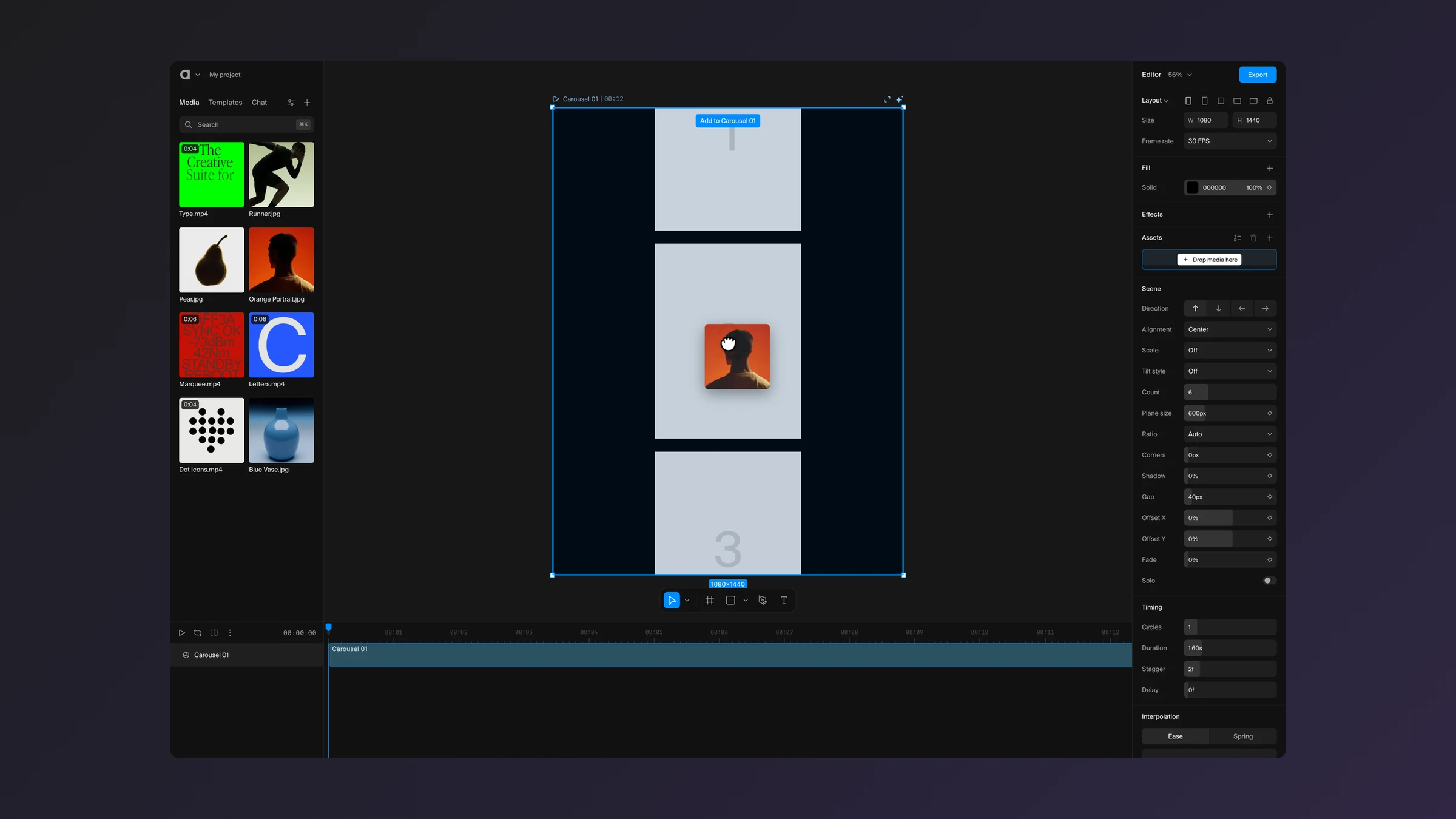
Hold an asset over a template, from Media or straight from Finder, and Arqe outlines where it will land. Let go and it takes the place of the stock media.
Want every new template to start with your own media? Turn on Settings → Templates → Fill new templates with my media.
Export any scene as a looping GIF
Any scene can now leave Arqe as a GIF that loops on its own.
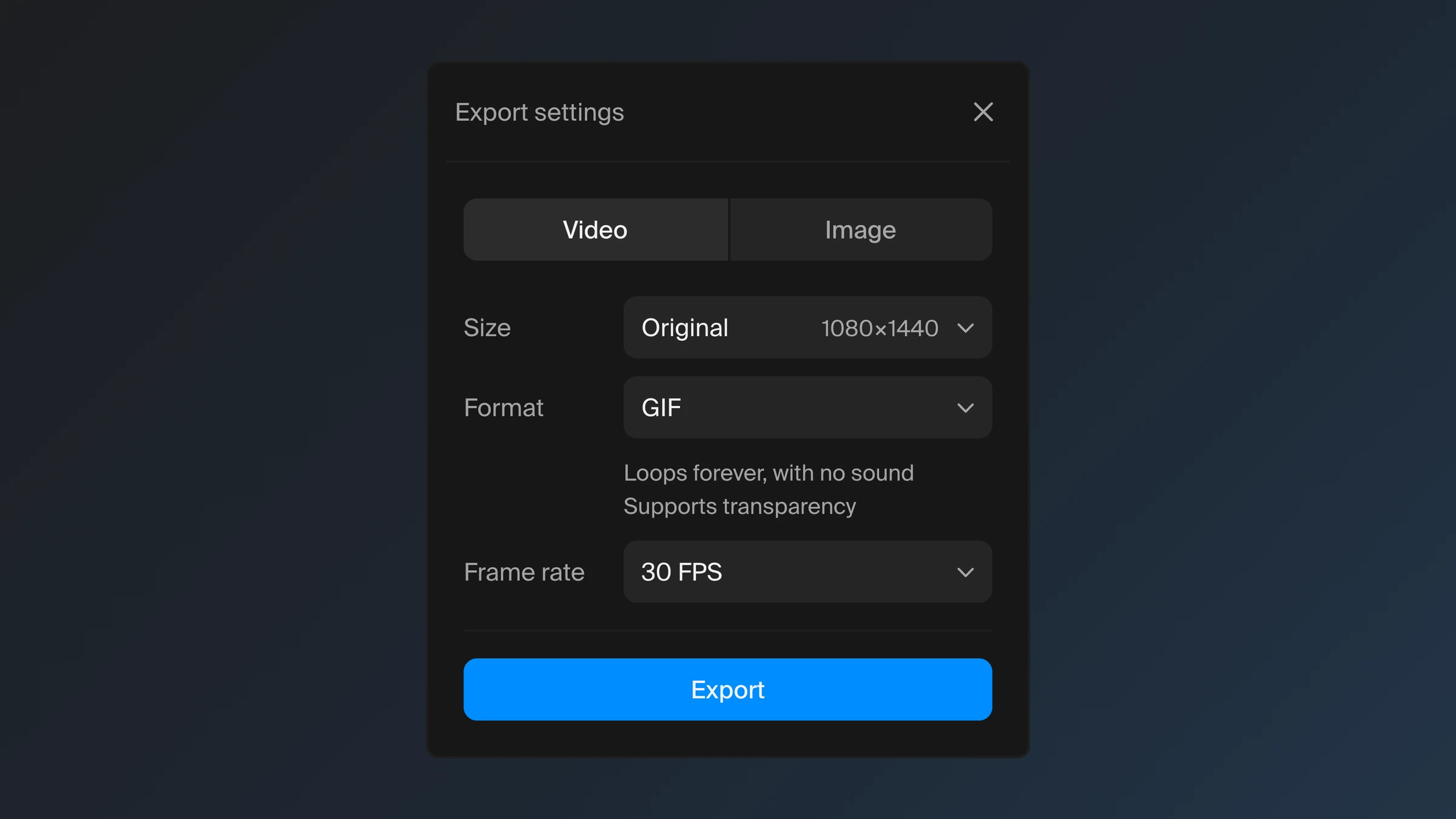
Pick GIF in Export, set the size and frame rate, and share it anywhere a video will not play.
Stack and shape animations in one popup
Stack animations on any layer and shape each one in a single popup.
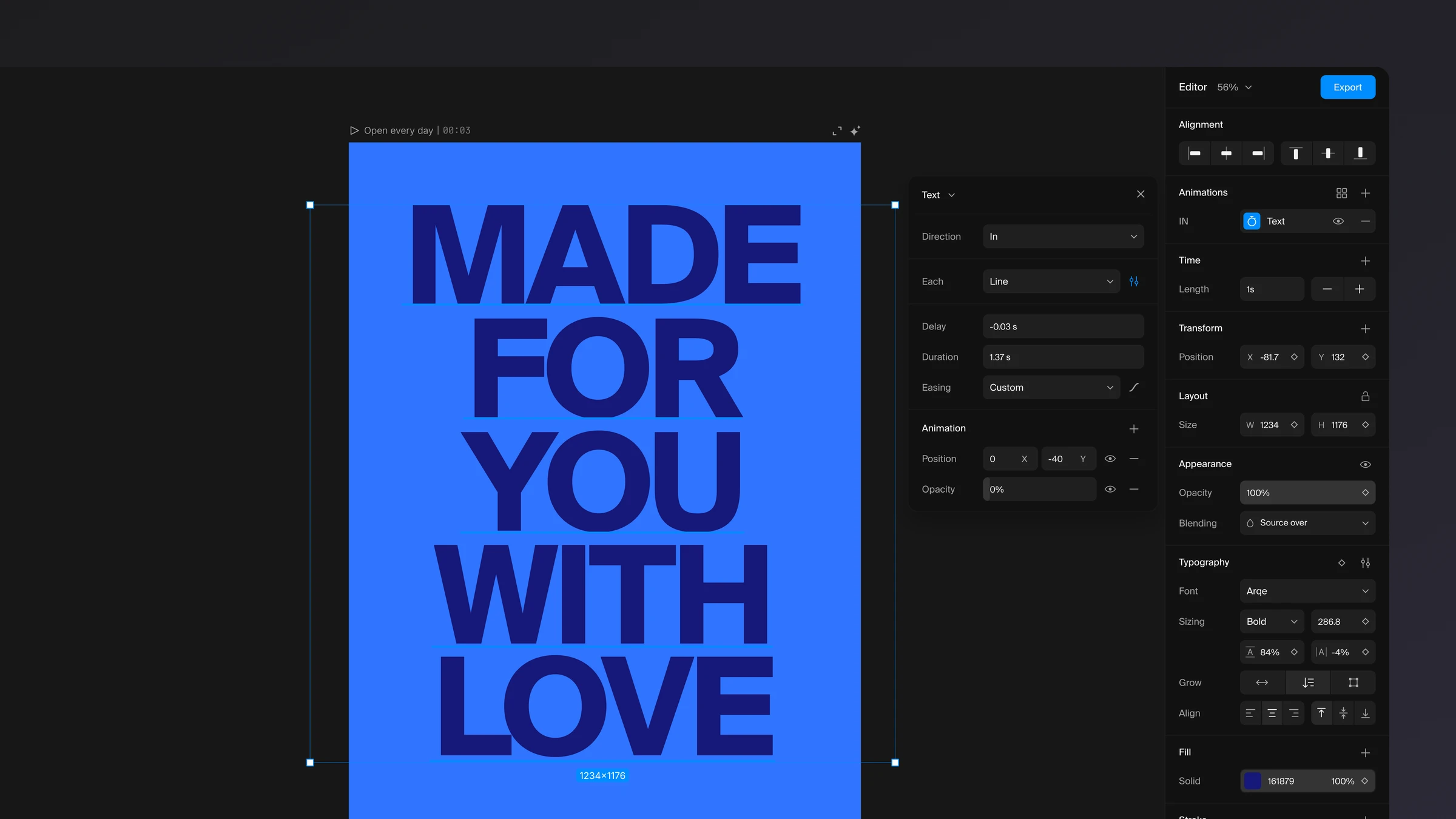
- Add several animations to one layer and see them stacked in order.
- Choose the type, easing and stagger in one popup, with a curve editor beside it.
- Browse presets as a list, and see each animation named on its timeline row.
Change a colour everywhere in a scene at once
Recolour every use of a colour in a scene at once.
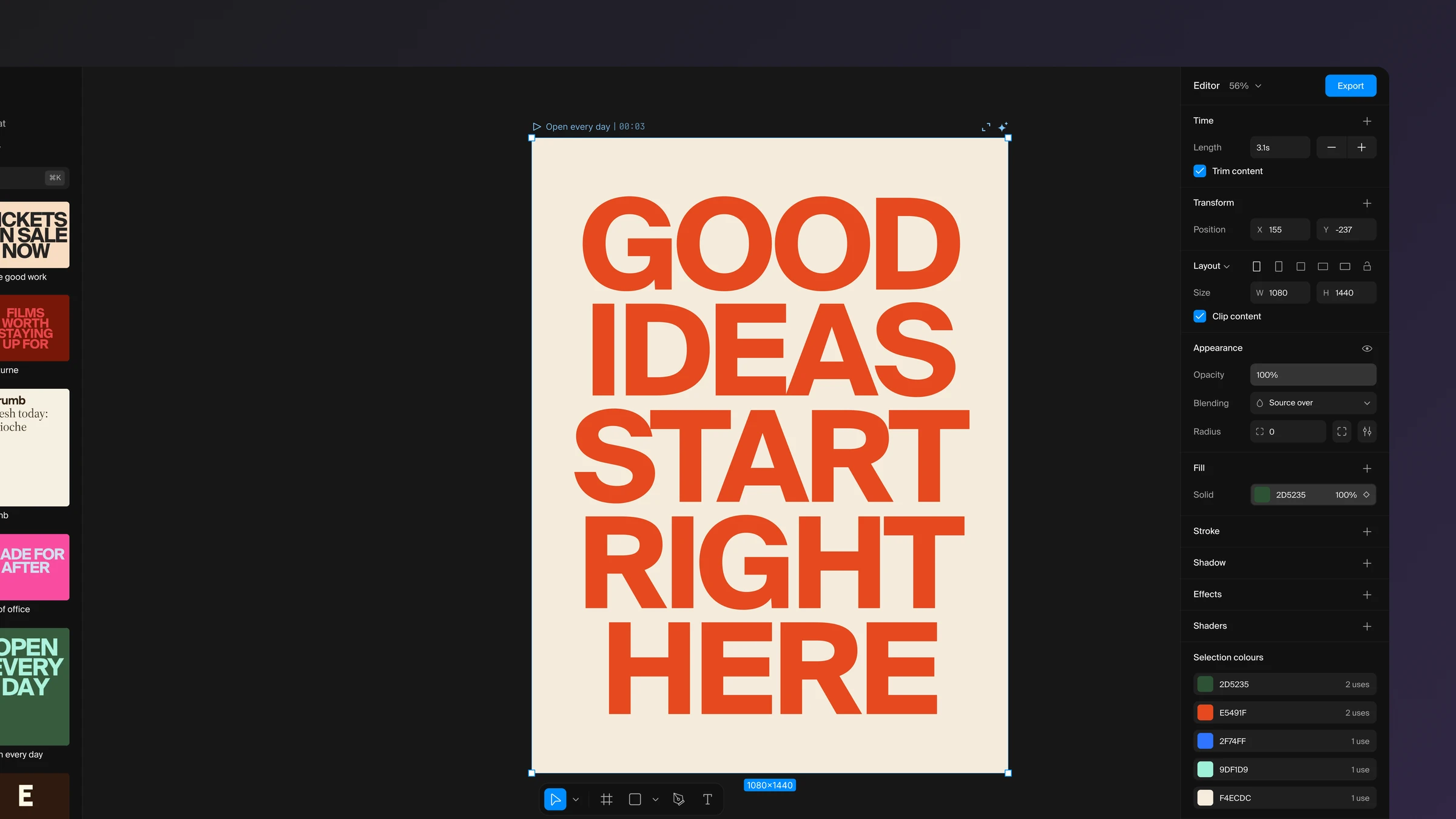
Select a scene and its colours appear together. Change one and every layer using it follows, so a new palette takes seconds.
새로운 Arqe가 왔어요
새로 만든 Studio에 Stock, Inspo, Recorder, 템플릿까지, 모두 한곳에 모였어요.
템플릿으로 시작하고, 스톡 영상이나 직접 올린 파일을 가져온 다음, AI에게 결과물을 다듬는 걸 도와 달라고 해 보세요.